




Install Flamely
for Windows.
Your download should start automatically. Download again
Open this page on your Windows PC to download and install Flamely.
- 1
Open the download
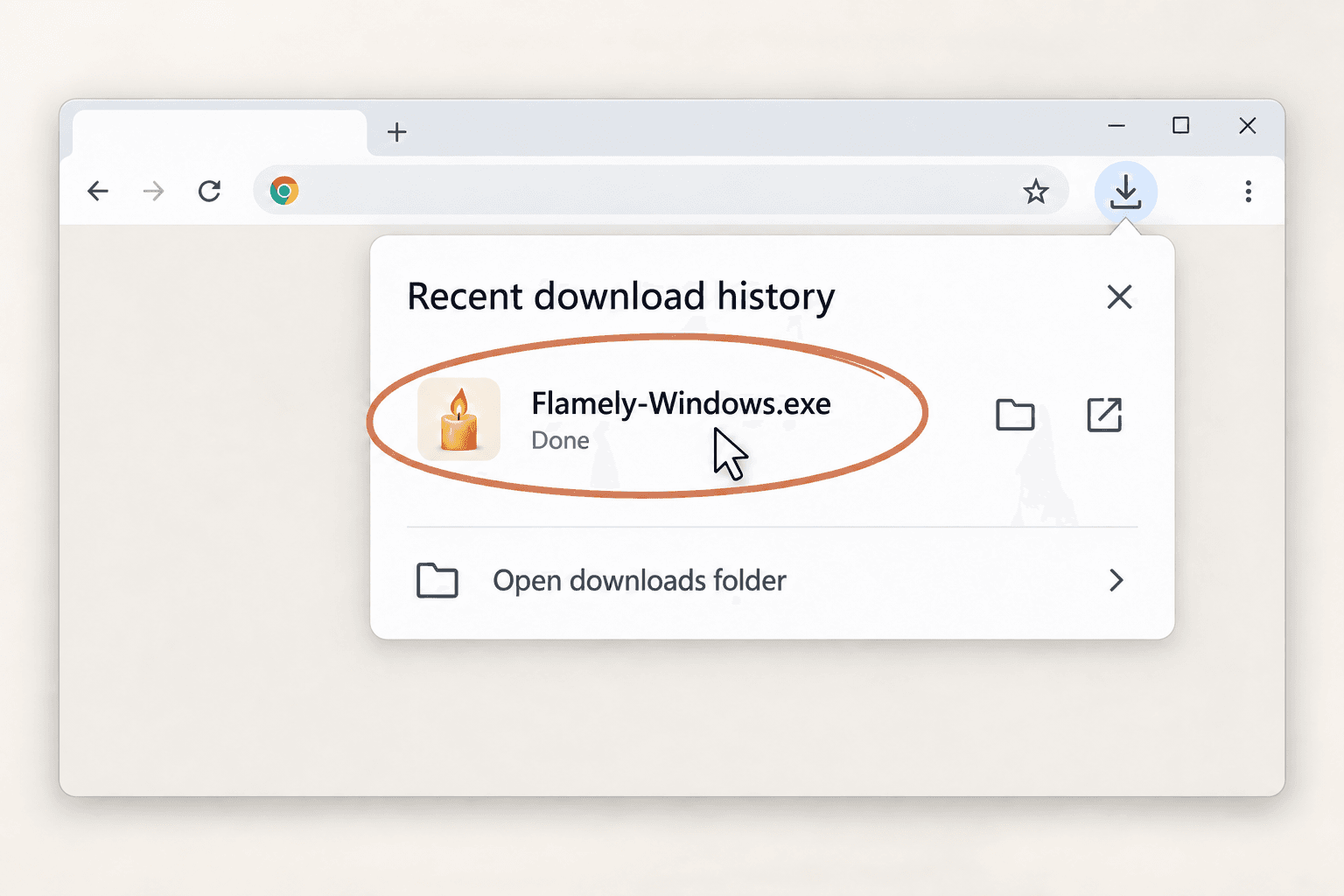
Open the installer.
Open the Flamely .exe file from your browser’s downloads or your Downloads folder.
- 2
If Windows asks
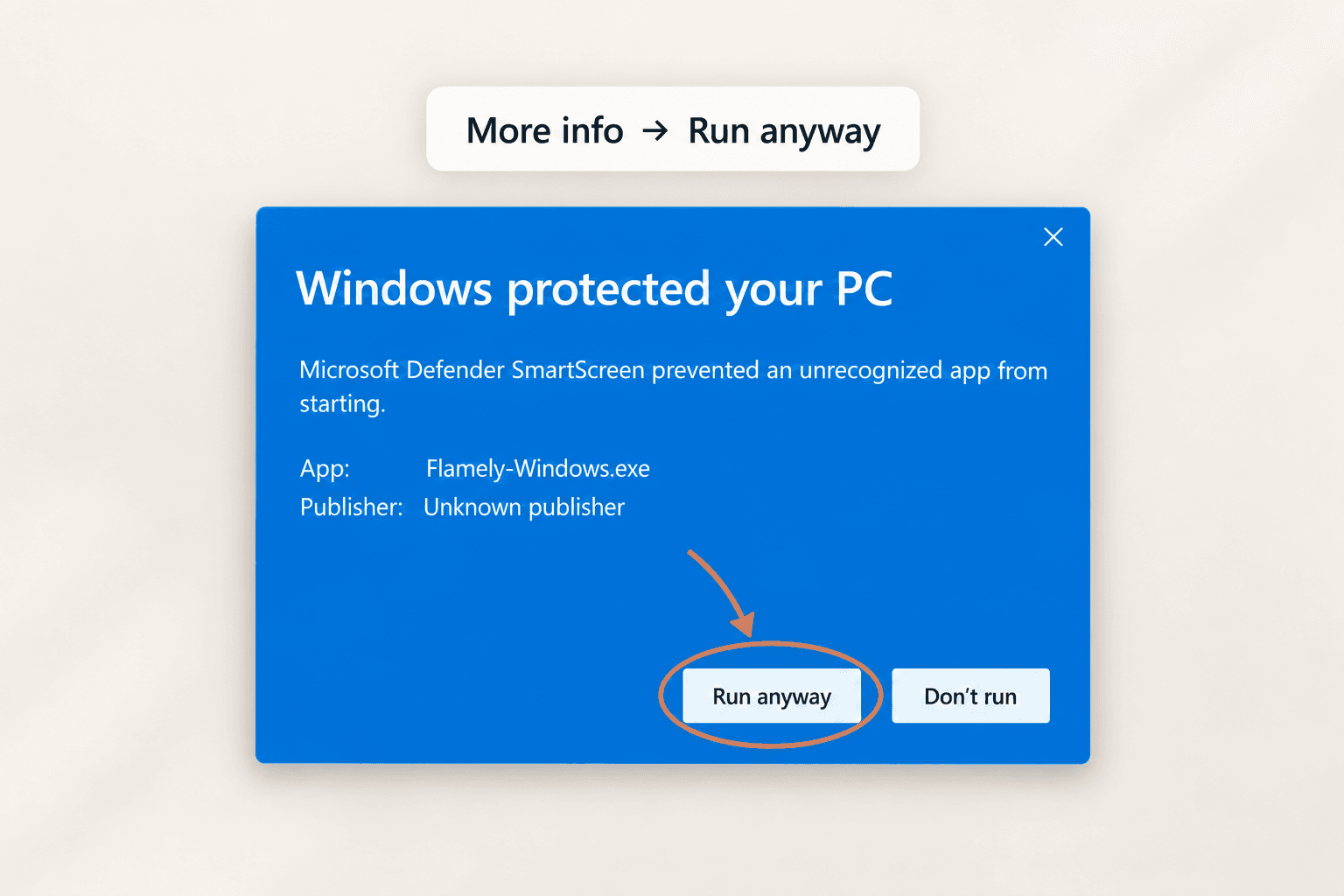
Let Windows open Flamely.
If you see “Windows protected your PC”, select More info, check that the app is the Flamely installer you just downloaded, then choose Run anyway.
- 3
Finish installation
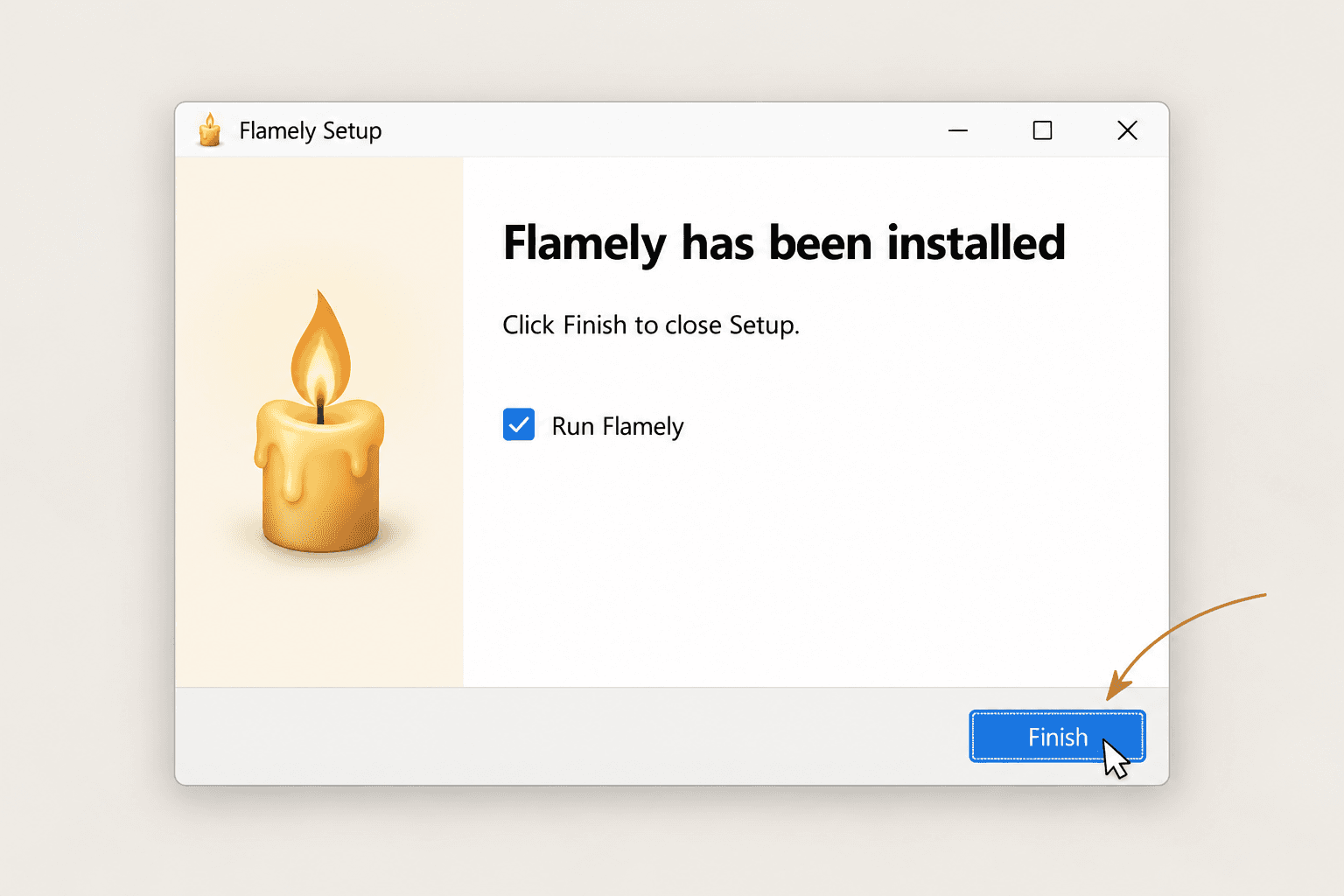
Finish setup.
Follow the setup prompts, then click Finish. Open Flamely from the Start menu whenever you’re ready.
I don’t see “Run anyway”.
First select More info on the SmartScreen message. If the option still isn’t available, your PC may use Smart App Control or an organisation policy that blocks unsigned apps. Contact your IT administrator or Flamely support. Smart App Control has no exception for individual apps. Read Microsoft’s guidance.
The download didn’t start.
Download the Windows installer again and check your browser’s downloads panel. If your browser blocks the file, review its message and confirm you’re downloading from Flamely’s official site. The SmartScreen steps above apply when opening the installer, after the download.
Where do I find Flamely after setup?
Open the Start menu and search for Flamely. Once it’s running, you can also find its candle icon in the system tray near the Windows clock. Check the hidden icons arrow if you don’t see it.